
Every form you send, and every answer, is in the client's chart.
The Forms tab
Open the client in Clients and choose the Forms tab.
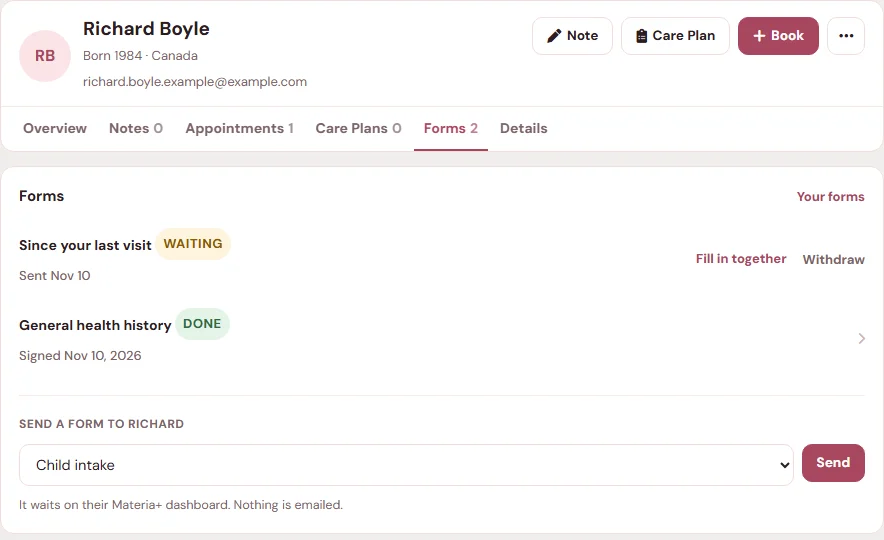
- Waiting or Started: the patient hasn't sent it yet. Started means they've saved some answers.
- Done: press it to read the answers.
- Filled in with you: you filled it in together. See Filling in a form with a patient.
You get a notification when a patient sends a form back.
Reading the answers
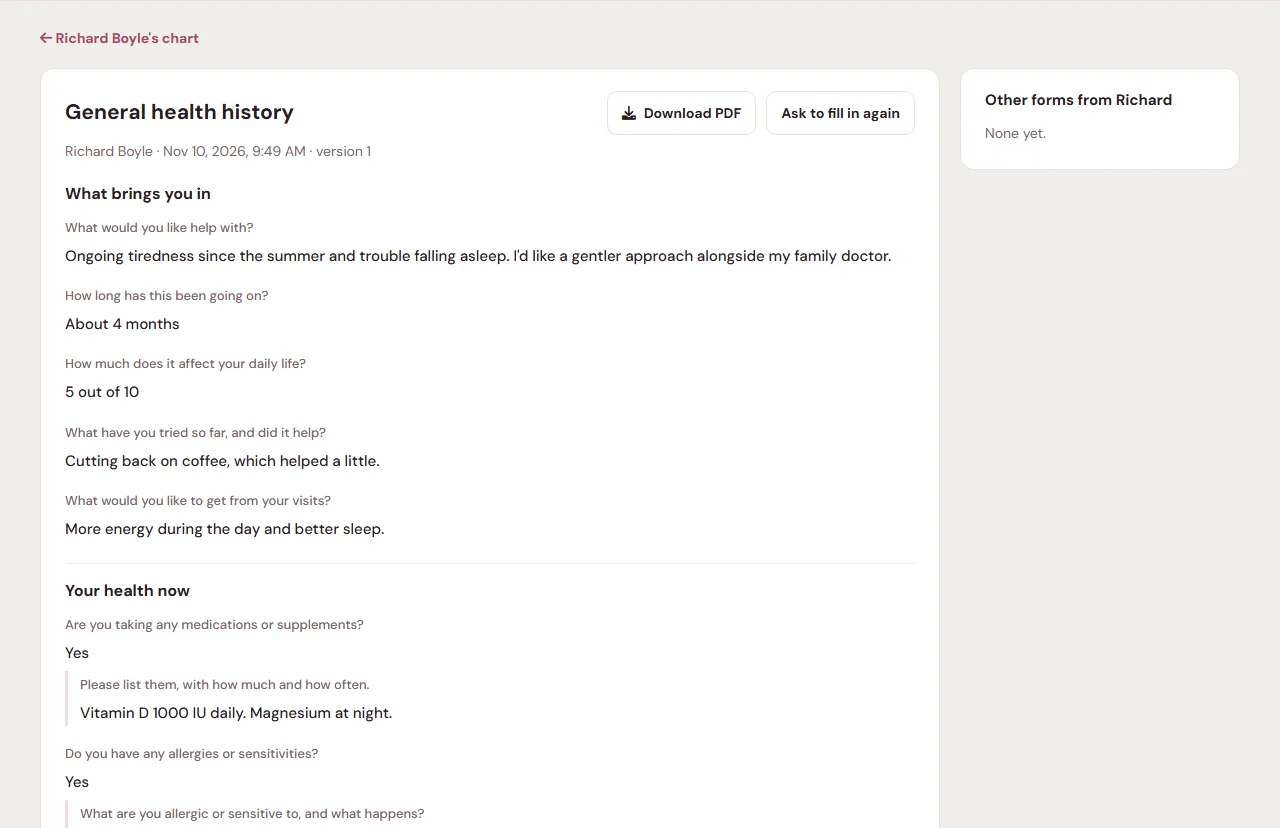
The answers are shown with the questions exactly as the patient saw them, even if you've changed the form since. At the bottom is the statement they agreed to, the name they typed and when they signed.
- Download PDF: a copy for your own records.
- Ask to fill in again: sends the same form again, for example if something has changed. Their earlier answers stay in the chart.
Answers are locked once sent. Each time you open or download them, it's recorded in the client's record history.
Send a form yourself
- In the client's Forms tab, choose a form under Send a form.
- If they have dependents, choose who it's about.
- Press Send. It waits on their Materia+ dashboard. Nothing is emailed.
You can send any published form this way, even one that isn't linked to a service.
Withdraw a form
Press Withdraw next to a form that hasn't been sent back yet. It disappears from the patient's Dashboard.