Every appointment is also an invoice. Finance shows them all, and what's been paid.
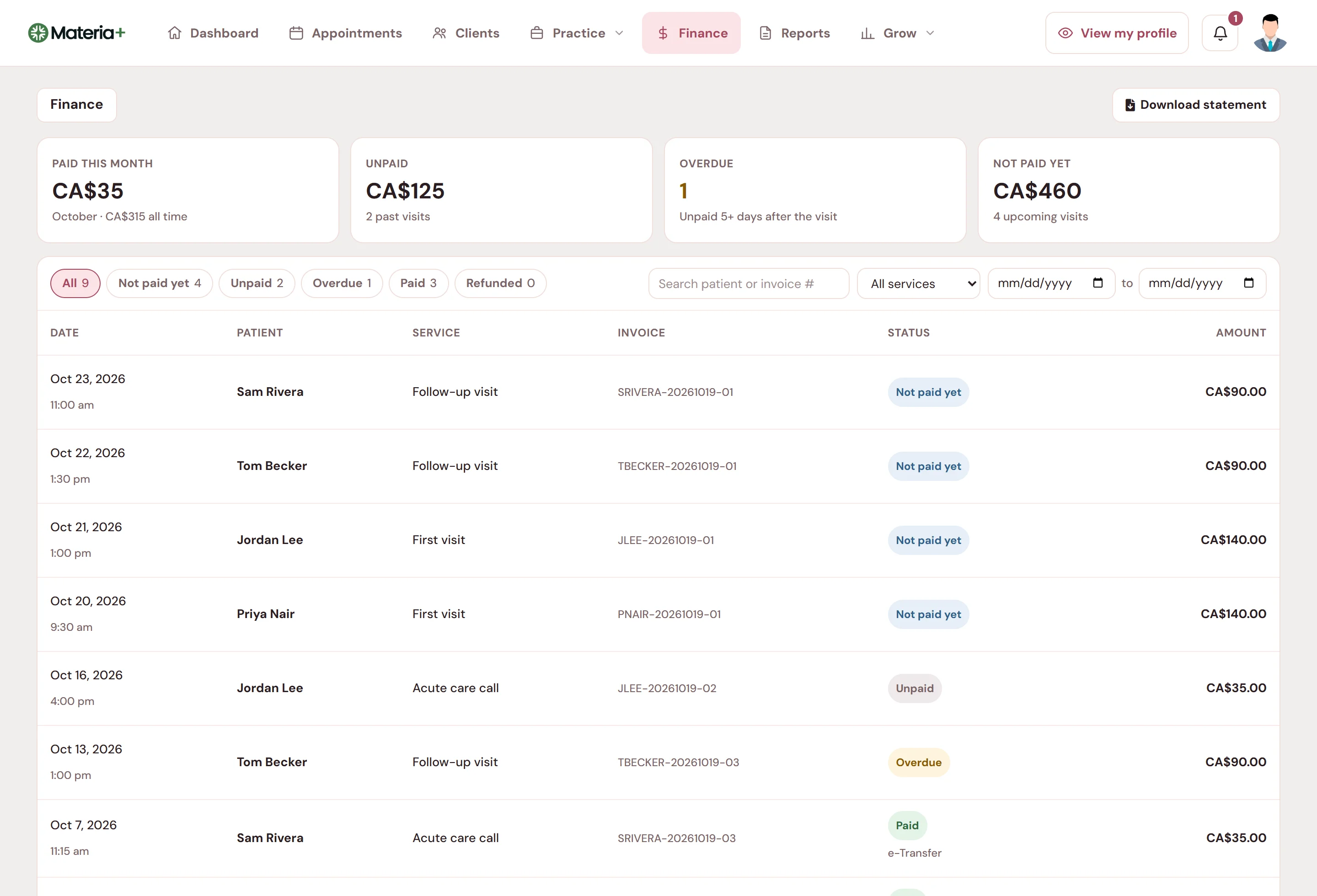
At the top
- Paid this month, and in total.
- Unpaid: visits that have happened but aren't paid yet.
- Overdue: unpaid 5 or more days after the visit.
- Not paid yet: visits still to come.
Finding an invoice
Filter by status (Not paid yet, Unpaid, Overdue, Paid, Refunded), search by patient or invoice number, or choose a service and a date range. Download statement gives you a summary for a period.
Working with an invoice
Click an invoice to open it on the side.
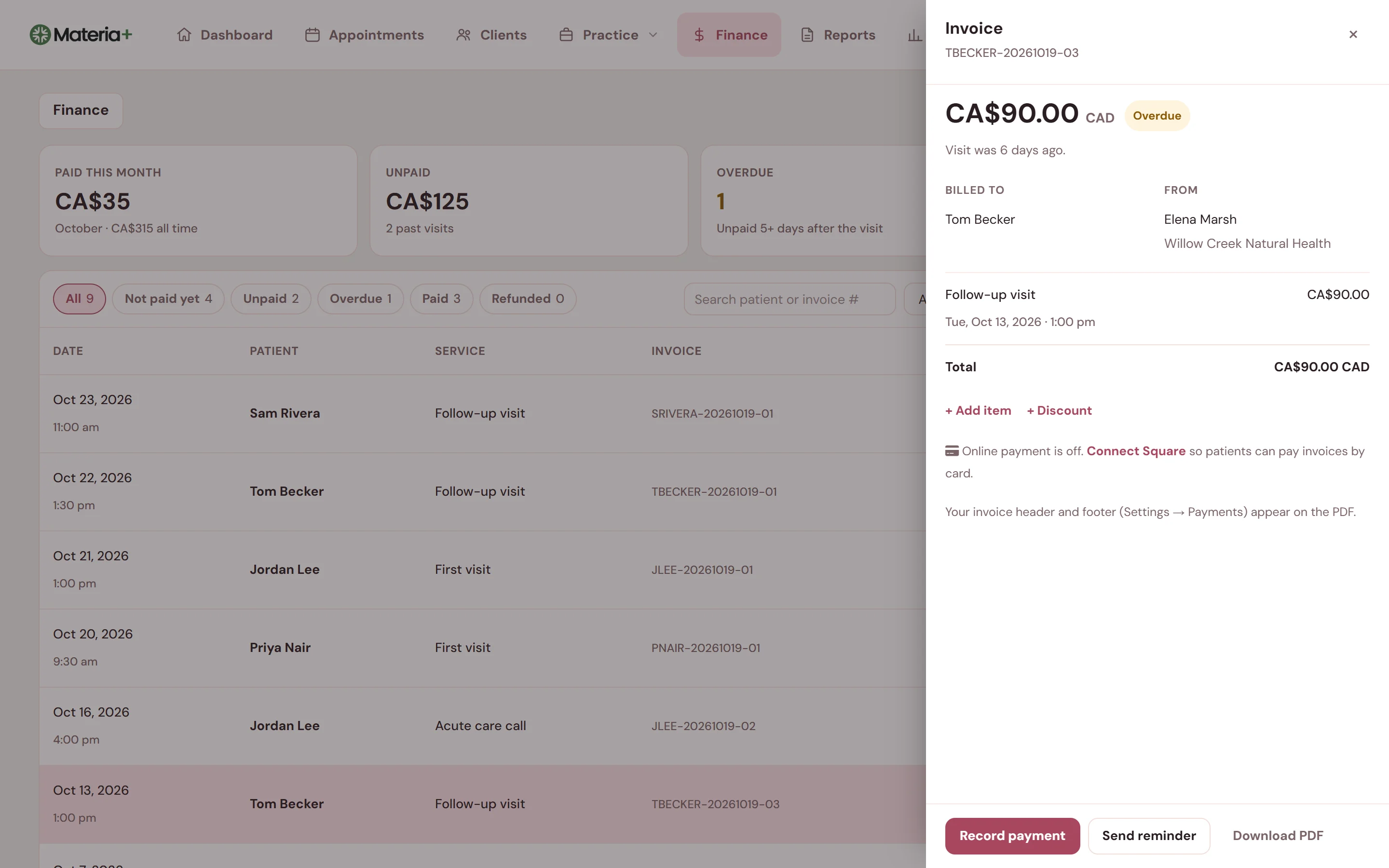
- Record payment when a patient pays you another way, such as cash or e-transfer. Choose the method and the day it came in. The receipt is ready straight away.
- Send reminder emails the patient about an unpaid invoice.
- + Add item adds something to the invoice, such as a product. + Discount takes money off.
- Download PDF for your records or the patient's insurer.
Patients who pay online by card are marked paid automatically.
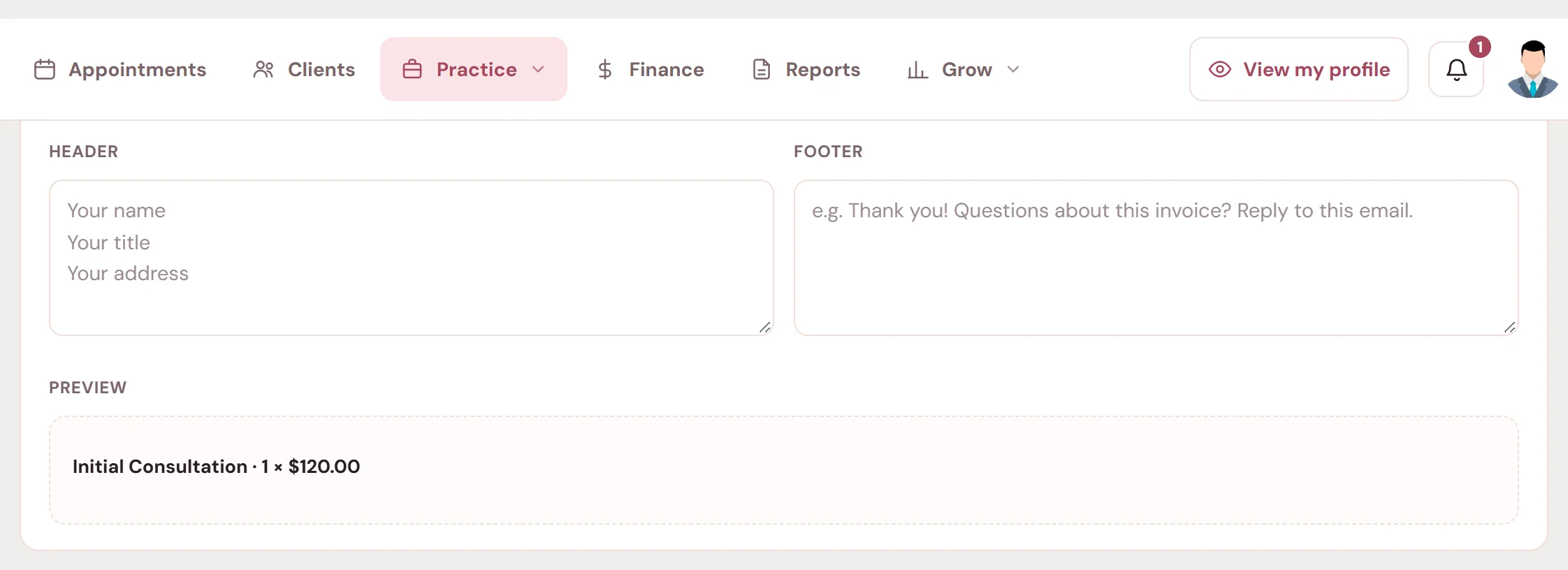
The header and footer on your invoices are set in Settings → Payments and invoices.