
Appointments shows everything you've booked. Switch between Calendar and Table at the top.
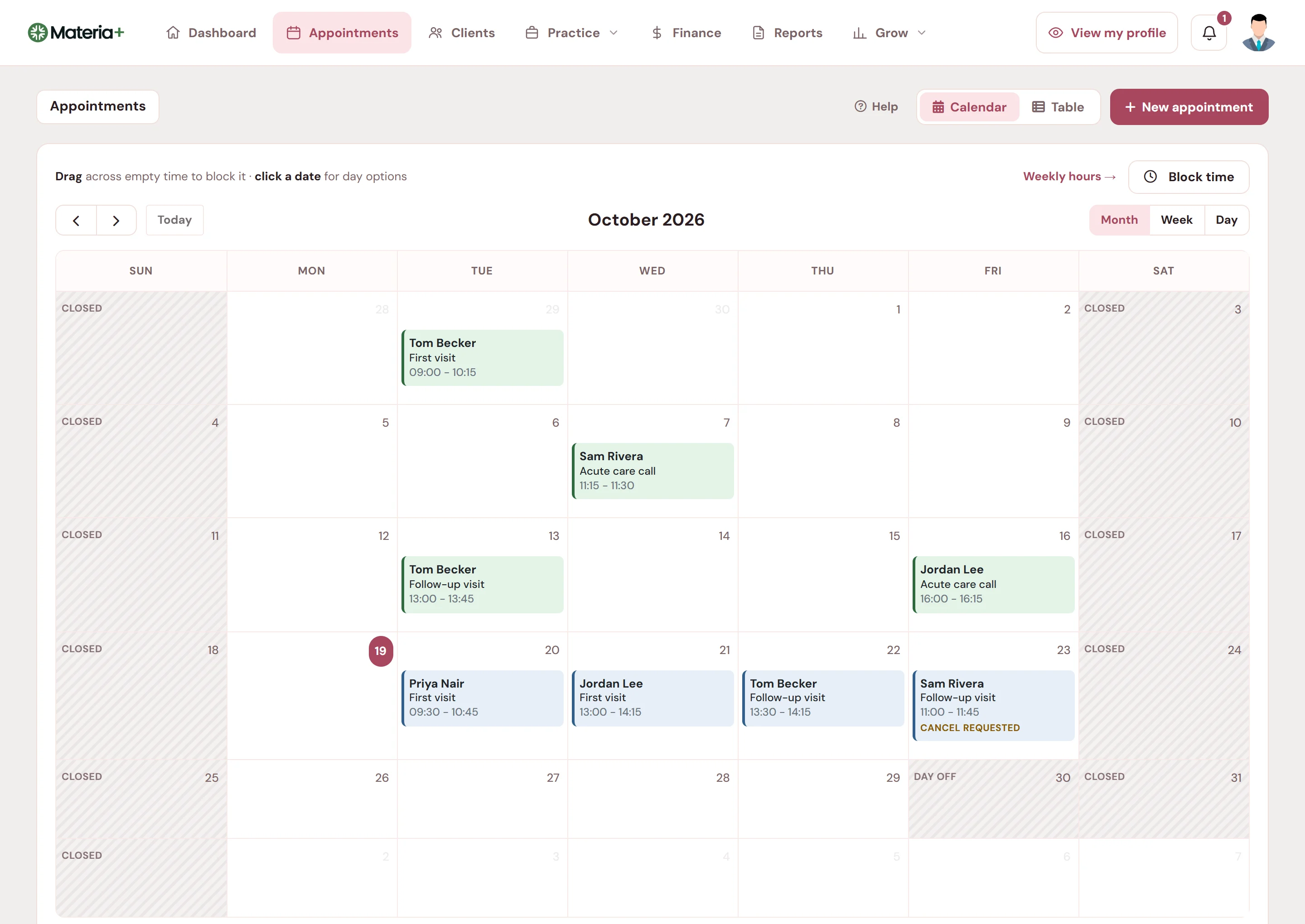
The calendar
- View by Month, Week or Day.
- Days you don't work are hatched and marked Closed; days off say Day off.
- Click an appointment to open it: the patient, the service, how you're meeting, and its invoice.
- Labels flag things to look at, such as Cancel requested, or Outside your hours for an appointment that's no longer within your weekly hours.
- Drag across empty time to block it, or click a date for day options.
The table
The same appointments as a list, handy for looking back over past visits.
Your Dashboard
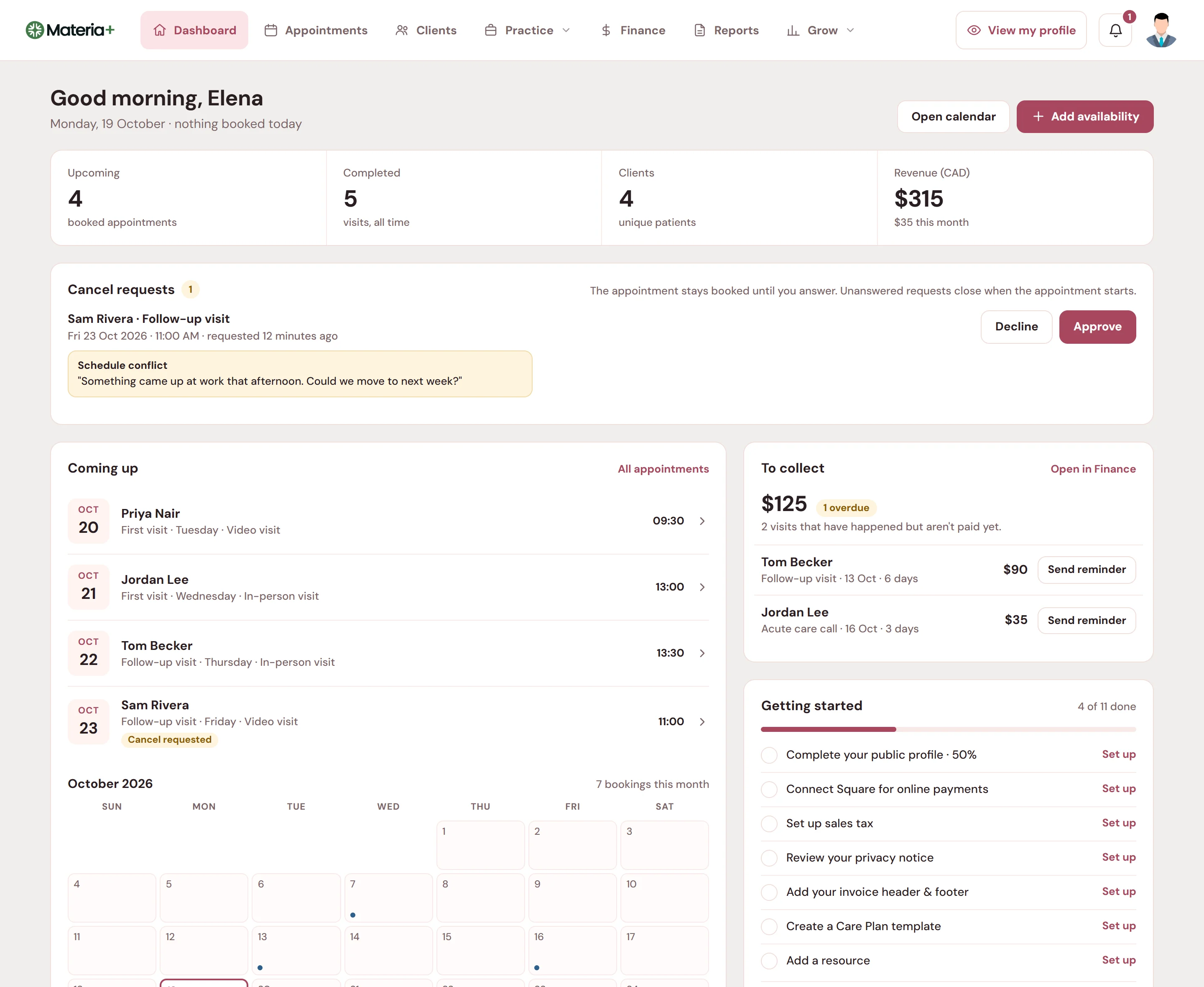
Your Dashboard shows what's coming up, cancel requests waiting for you, money to collect, and a calendar of the month.
After a visit
Appointments are marked completed by themselves once they're over. If you need to report a problem with a patient, use Report patient in the … menu on their chart in Clients.