
Some providers ask you to fill in a form before your visit, such as a health history or a consent form. You fill it in on Materia+, and your answers go only to your provider.
Where you'll find it
Forms are never sent by email. You'll see a form:
- right after you book, on the confirmation page, with a Fill in now button
- at the top of your Dashboard, under Before your visit (if you have more than 3, press Show all)
- under the appointment, on your Dashboard and in My appointments
- in your notifications

Your booking confirmation and reminder emails also tell you if you have forms to fill in. Sign in to Materia+ to fill them in.
Filling it in
- Press Fill in next to the form.
- Answer the questions page by page. Questions marked (required) need an answer before you can go on.
- Your answers are saved each time you press Next, so you can stop and come back later. The button then says Continue.
- On the last page, check your answers. Press Edit to go back to any part.
- If the form asks you to sign, type your full name. Then press Sign and send.
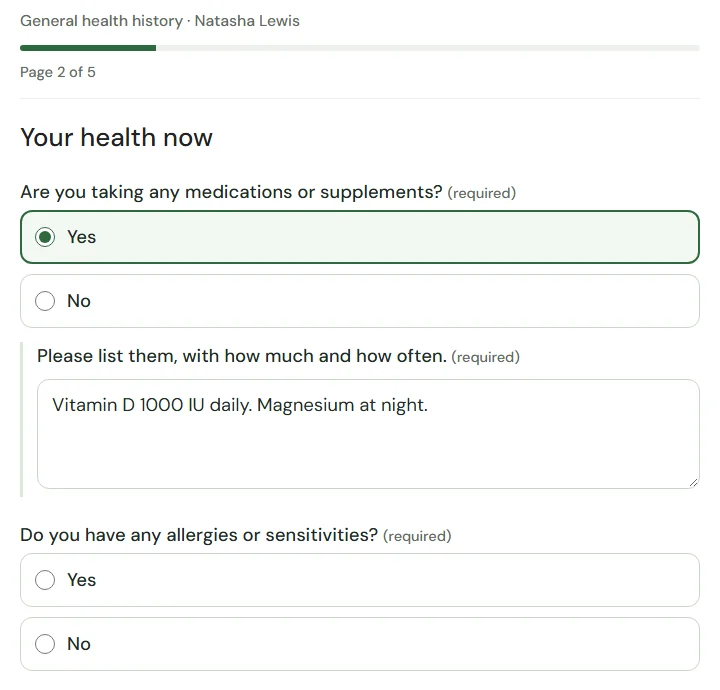
A form for your child or another dependent says who it's for at the top. You fill it in for them.
After you send it
Your provider sees your answers in your chart, inside Materia+. Once you send a form you can't change it. If something changes, message your provider, who can send you the form again.
PDF forms
Some providers use PDF forms instead. If a service has them, you download them in step 2 of booking, under Download and fill out the forms relevant to you.
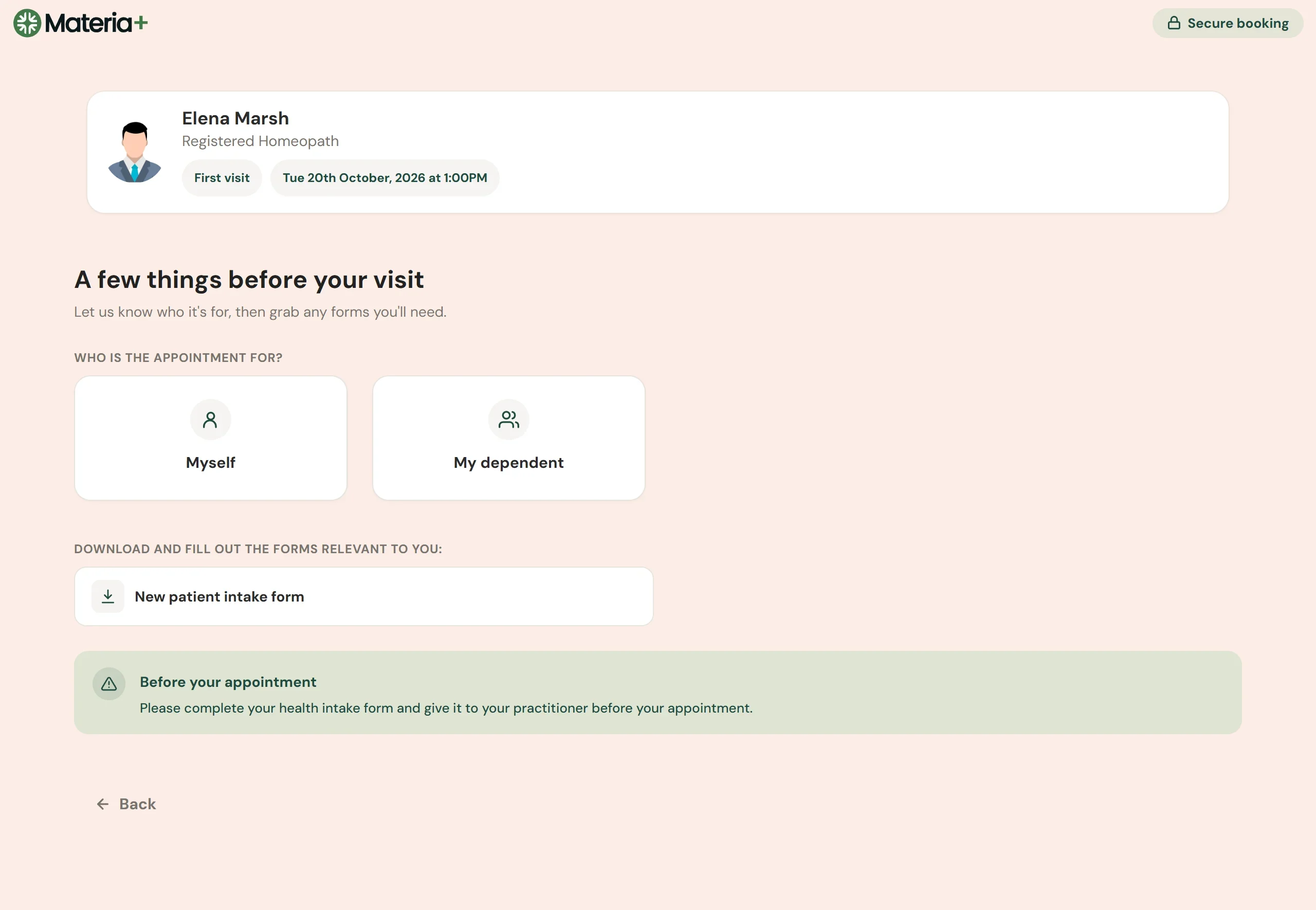
Fill a PDF form in before your appointment and give it to your provider the way they ask: bring it with you, or send it to them. If you're not sure, ask your provider.